How to Perform Object Redaction using VIDIZMO Vision Indexer
The VIDIZMO Vision Indexer uses AI to detect and redact visual elements within your Portal content. It supports a wide range of object classes from faces and people to vehicles, weapons, safety equipment, and text enabling you to protect sensitive information across images, videos, and documents.
You can configure the Vision Indexer to automatically detect and redact objects during upload, or perform on-demand processing for both new and existing content. Automatic redaction eliminates manual intervention, ensuring consistent results across large volumes of content. On-demand redaction gives you control over which content to process and which object classes to redact.
For detection-only workflows without redaction, see How to Perform Object Detection using VIDIZMO Vision Indexer.
For conceptual details about the redaction process, see Understanding Automatic Redaction via VIDIZMO Vision Indexer.
Supported Object Detection and Redaction Classes
The VIDIZMO Vision Indexer can detect and redact the following object classes:
Person
Gun
Knife
Train
Car
Bus
Truck
Boat
Bike
Airplane
License Plate
Screen
Laptop
Display
Cellphone
Signature
Street Sign
Head
Eyes Protection
No Eyes Protection
Nose Mouth Protection
No Nose Mouth Protection
Head Protection
No Head Protection
Hand Protection
No Hand Protection
Foot Protection
No Foot Protection
Safety Vest
No Safety Vest
House Number
Pothole
Fallen Tree
Graffiti
Fire Extinguisher
Bulletproof Vest
Mailbox
Additionally, the Vision Indexer supports OCR (Optical Character Recognition) for text detection and redaction, and Custom Patterns for document redaction.
Note: VIDIZMO also supports images with equirectangular projection (such as panoramic images) for object detection and redaction.
Prerequisites
- Ensure you're in a group with feature permission to configure the VIDIZMO Vision Indexer and perform object detection. You also need permission for the individual AI detection features you intend to use. See: Enable Features in the VIDIZMO Portal.
- To perform redaction, you must belong to a group with Redaction or Bulk Redaction features enabled.
- (Optional) To select detection and redaction options during upload, enable Custom Upload on your portal. See: How to Custom Upload Media.
- Ensure the VIDIZMO Vision Indexer is configured and enabled. See: Configuring VIDIZMO Vision Indexer for Object Detection.
Note: Keep your configuration focused. Select only the detection and redaction types you need to reduce processing time and false positives.
Automatic Object Redaction
When automatic processing is enabled, the VIDIZMO Vision Indexer detects and redacts objects based on the settings configured in the application. This ensures that specified visual elements are identified and redacted without manual intervention.
Automatic processing occurs when:
- Content is uploaded.
- Content is ingested.
- A copy is created.
- A VIDIZMO Live session is saved and published. See: Understanding Live Streaming in VIDIZMO.
Automatic Redaction on Upload
Here's how automatic redaction works when you upload content. In this example, the Vision Indexer is configured to detect and redact license plates.
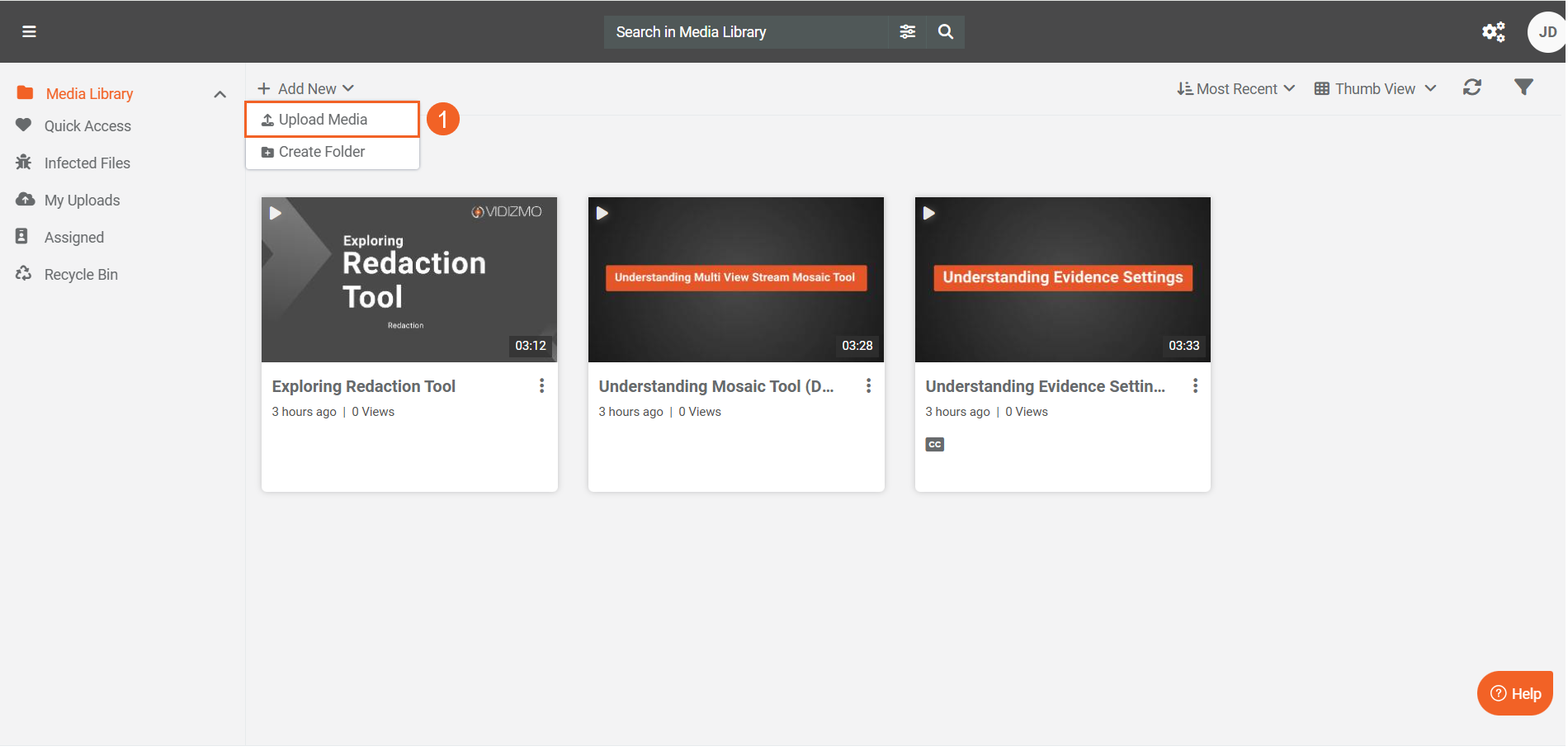
- Select + Add New and choose Upload Media.
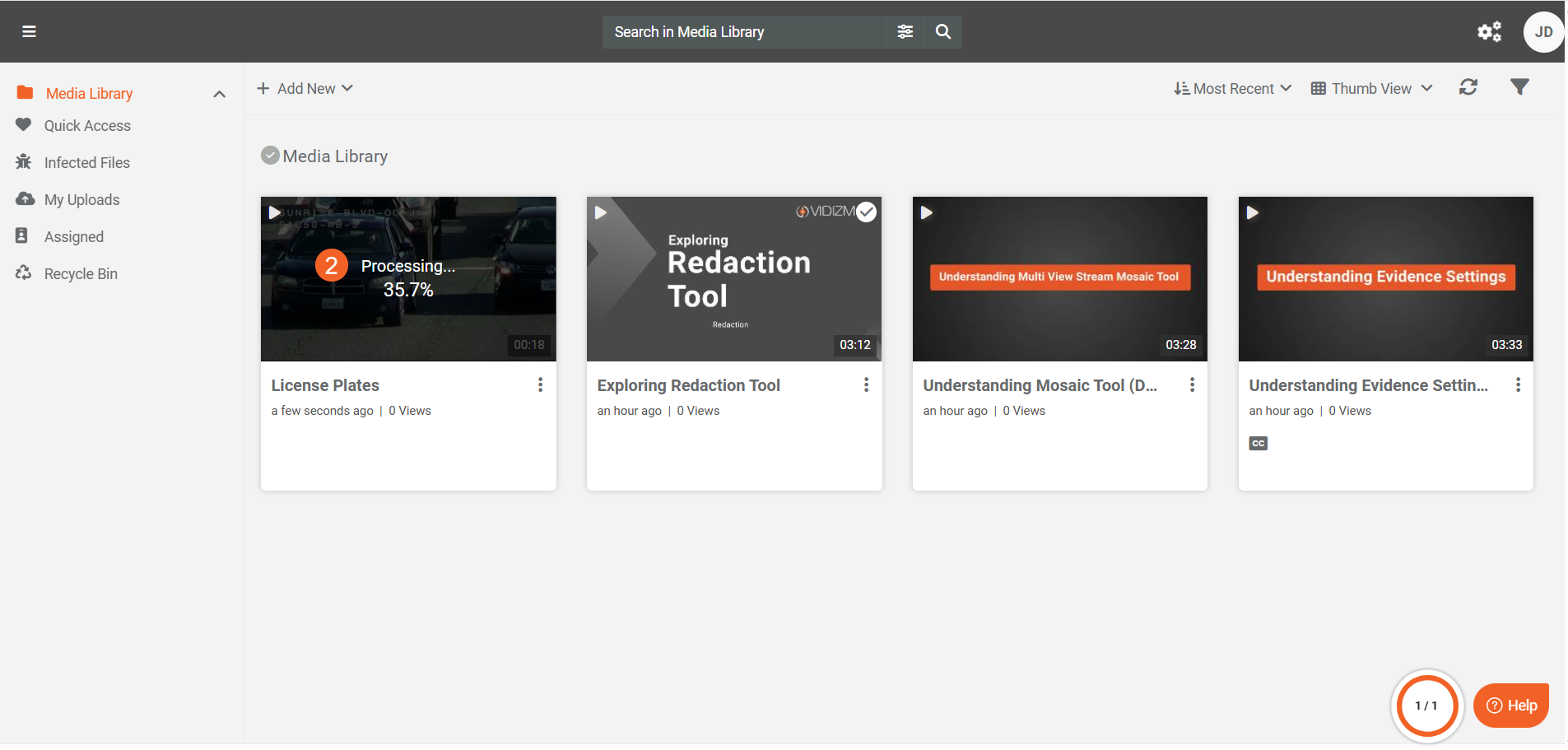
- Upload your file. The item undergoes Processing. The processing outcome depends on the Action for Original File setting in the Vision Indexer configuration.
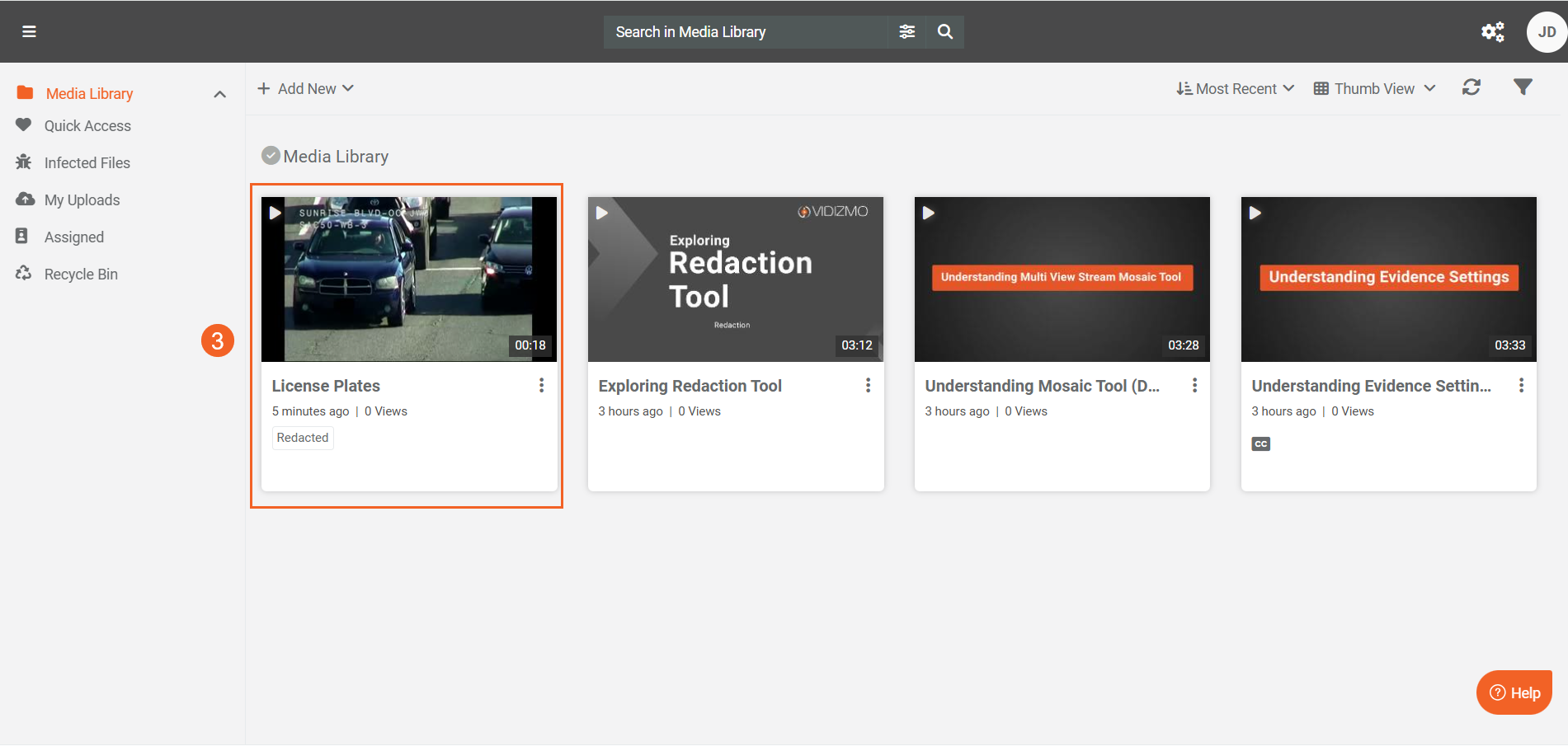
- After processing completes, a Redacted tag appears on the thumbnail, indicating redaction has been applied. Click the content to open its playback page.
- During playback, you can view the redacted objects (in this case, license plates), confirming the redaction was applied successfully.
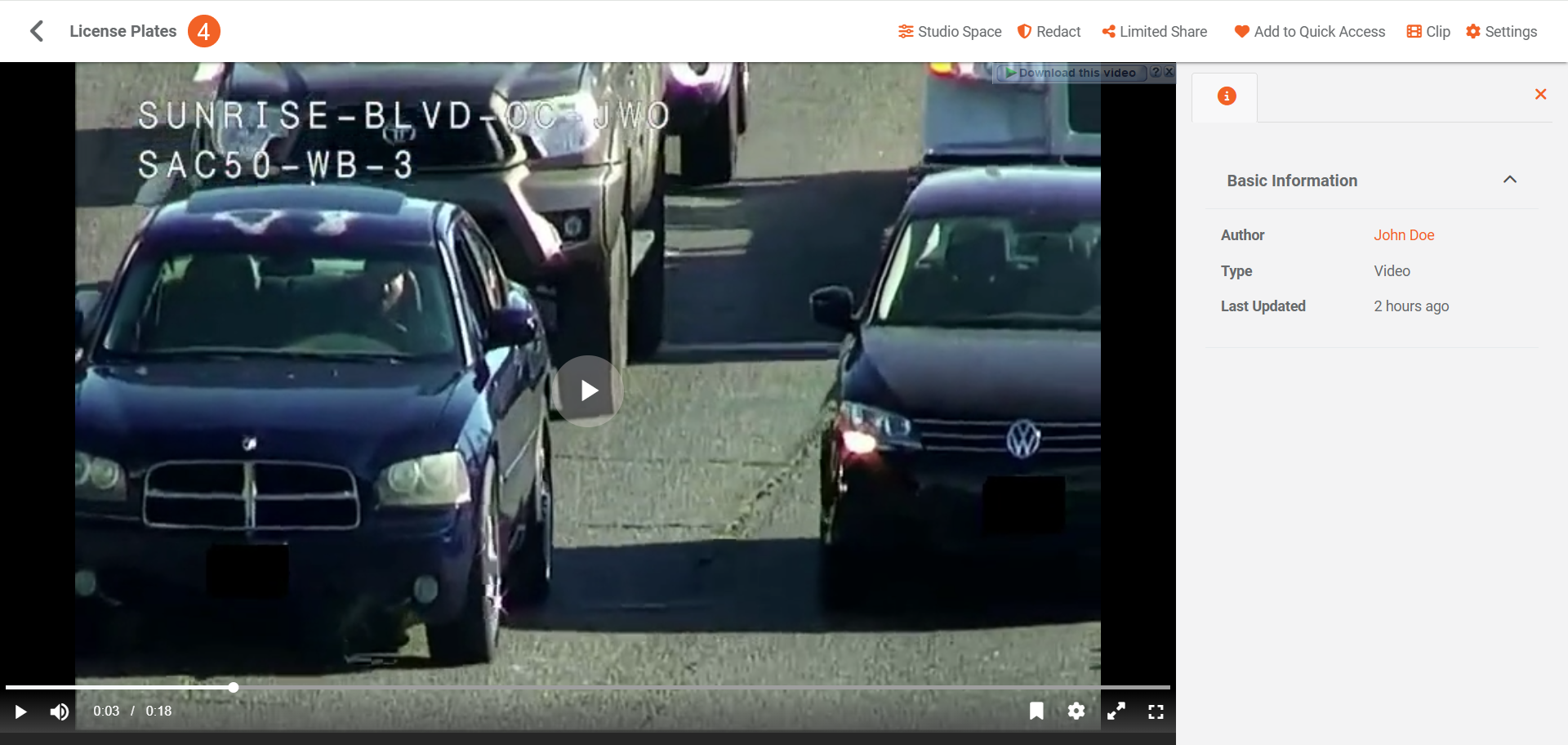
Note: The detections and redactions depend on the types enabled in your VIDIZMO Vision Indexer configuration.
On-Demand Object Redaction
Use on-demand processing when you want to control which content gets processed and which objects to detect and redact.
On-Demand Redaction from Custom Upload
When Custom Upload is enabled, you can select which detection and redaction types are applied at the time of upload.
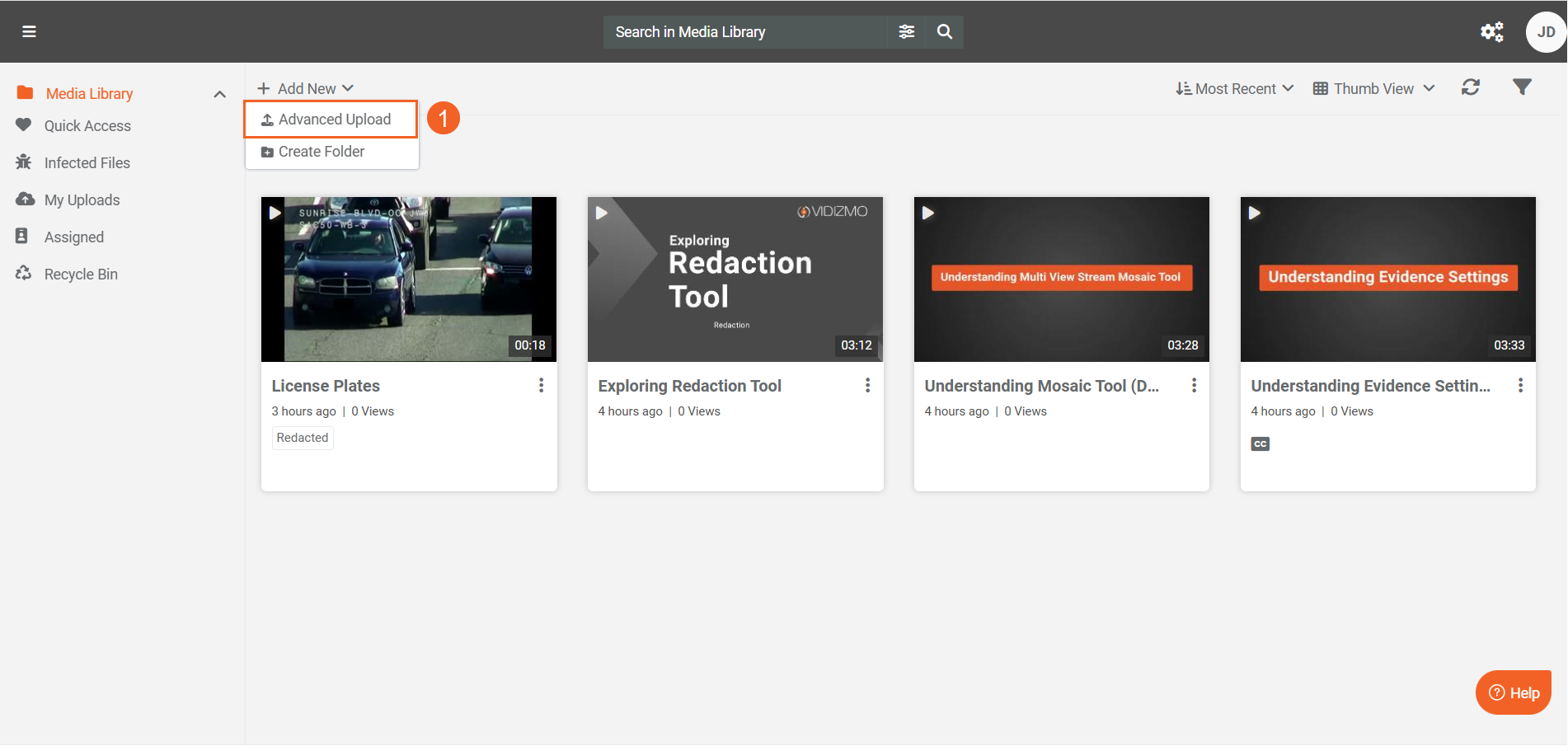
- Upload your content. Depending on your portal:
- EnterpriseTube: Go to the Process tab.
- DEMS/Redaction: Use Advanced Upload.
-
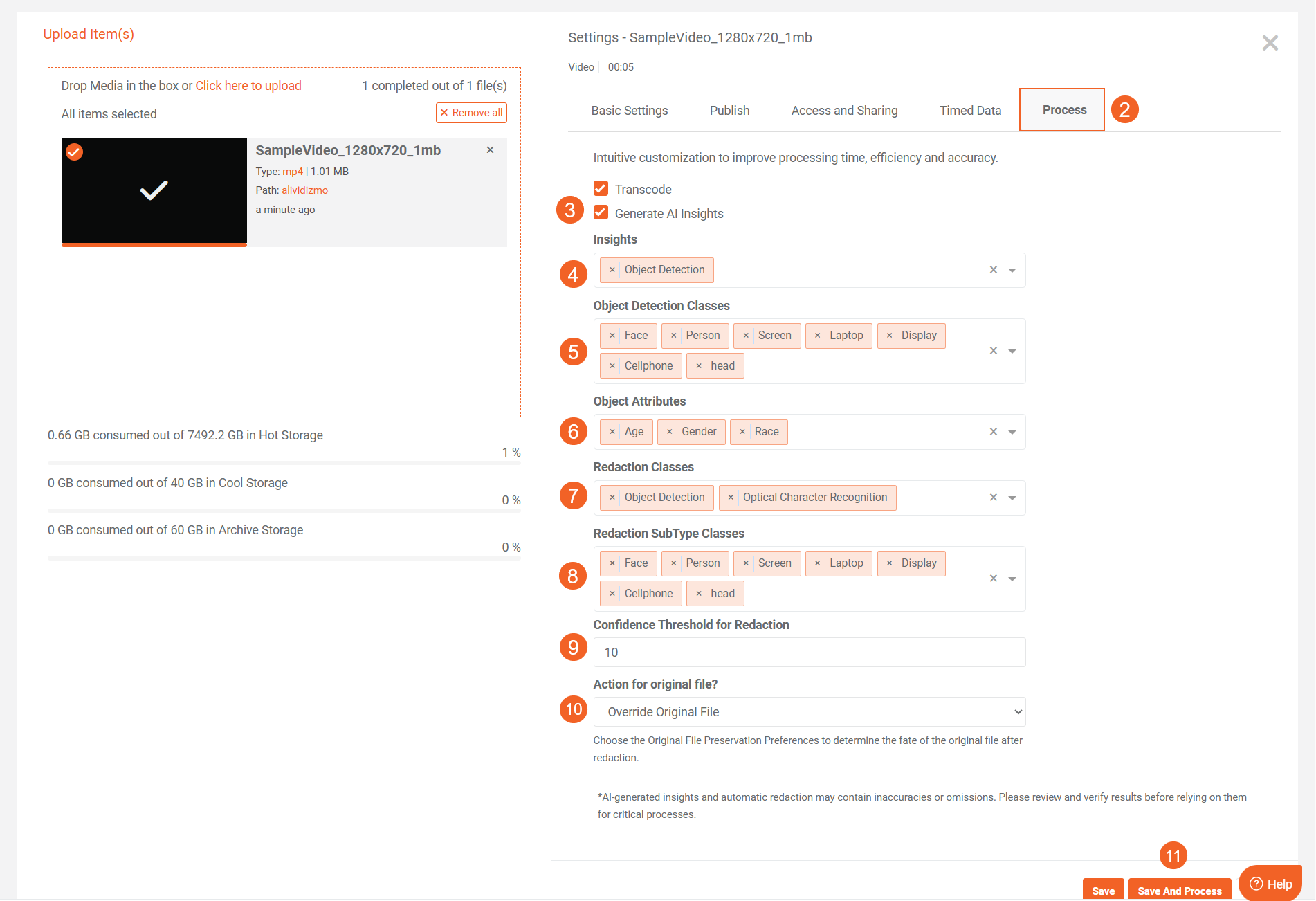
After the upload, navigate to the Process tab.
-
Select Generate AI Insights.
-
In the Insights field, select Object Detection.
-
In Object Detection Classes, select the object types you want to detect (for example, Face, Person, Screen, Laptop, Display, Cellphone, Head).
-
If you selected Face, the Object Attributes field appears. Select the attributes you want to detect: Age, Gender, Race.
-
In Redaction Classes, select the insight types to redact: Object Detection, Optical Character Recognition, or both.
-
In Redaction SubType Classes, select the specific object classes you want to redact (for example, Face, Person, Screen, Laptop, Display, Cellphone, Head).
-
Set the Confidence Threshold for Redaction (range: 10–99). Objects detected with confidence scores at or above this threshold will be redacted.
-
Select Action for Original File to determine how the original file is handled after redaction.
-
Click Save or Save and Process to apply your selections and begin processing.
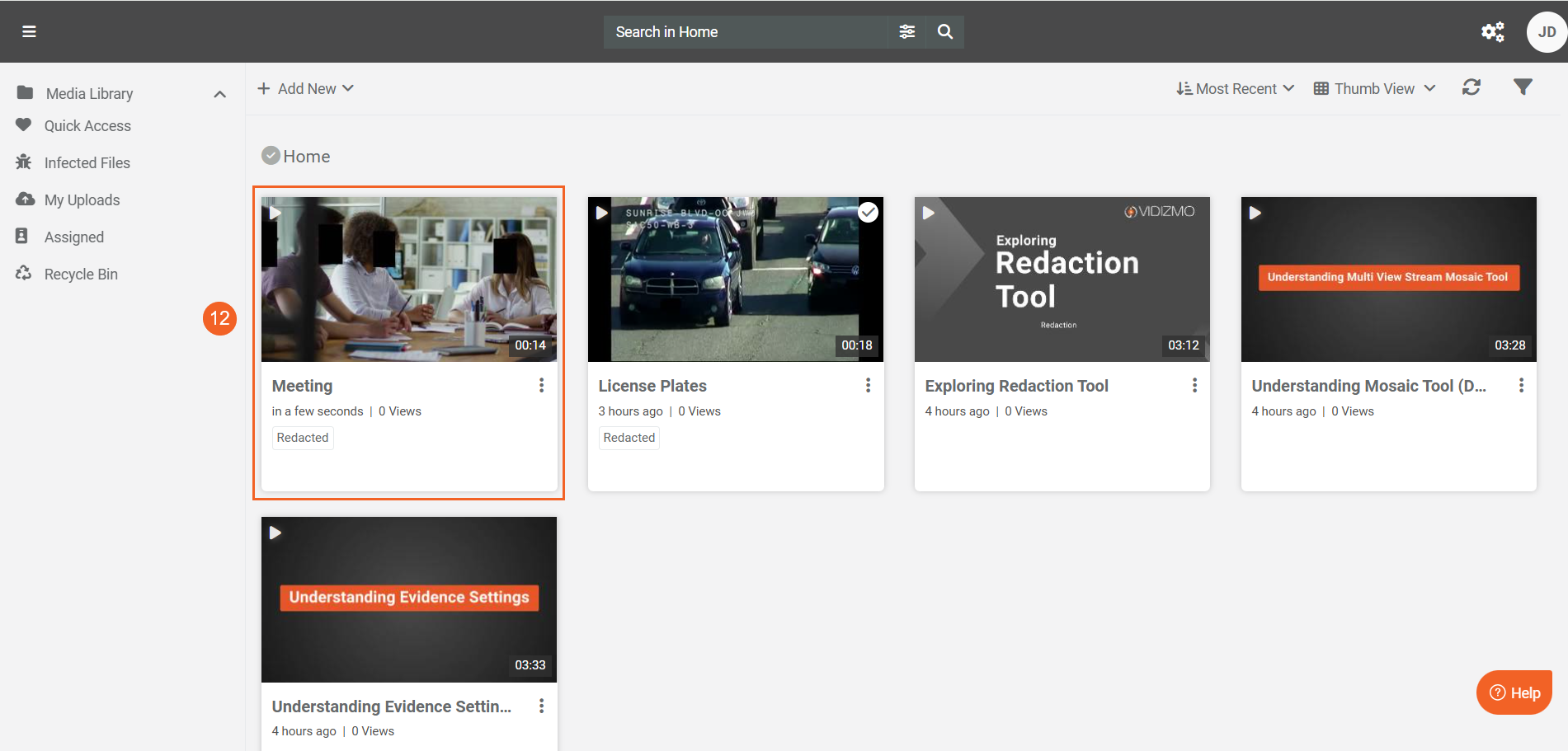
- Once processing completes, click your processed content to open its playback page.
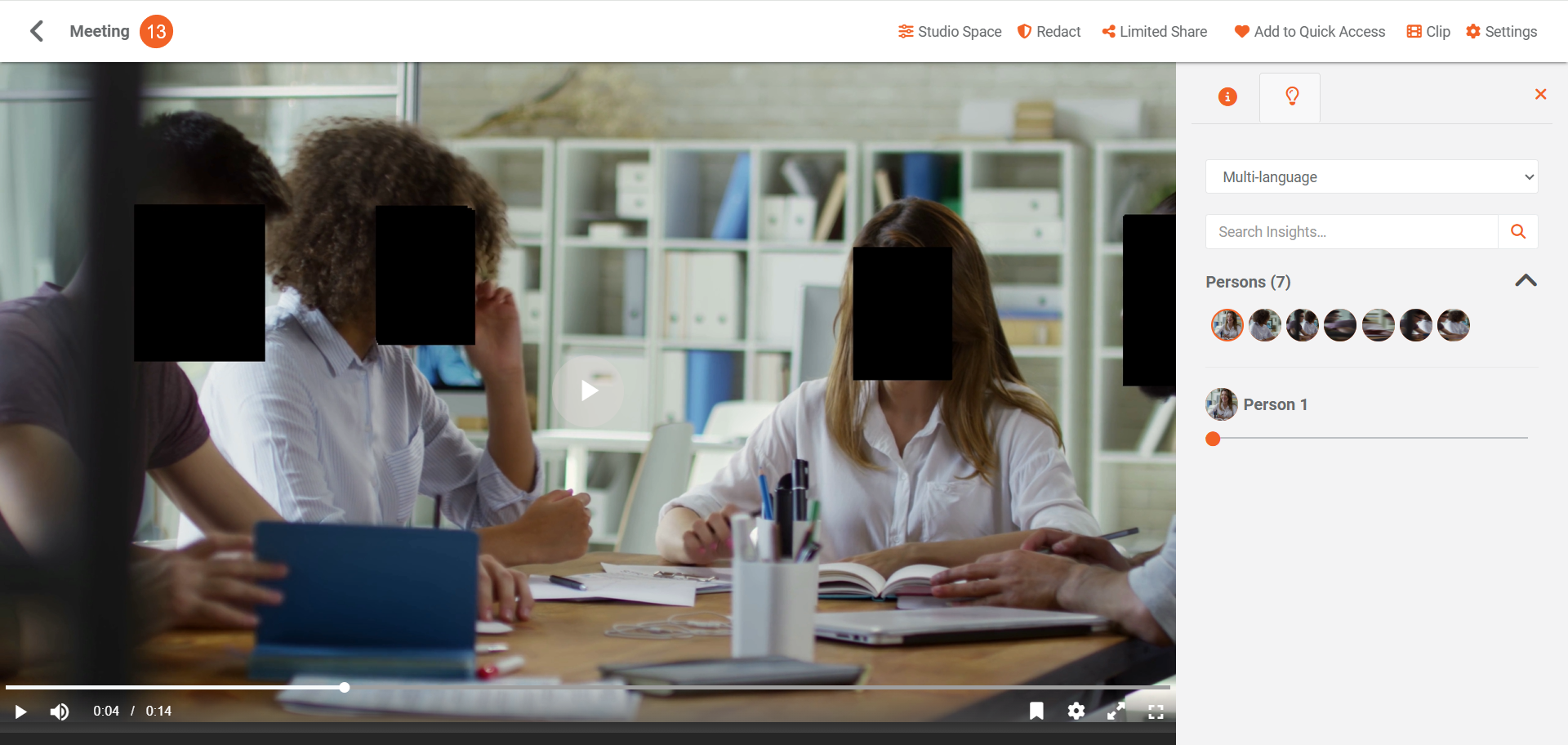
- During playback, only the objects specified in Redaction SubType Classes are redacted. All other detected objects remain visible in the Insights tab.
On-Demand Redaction from Process Modal
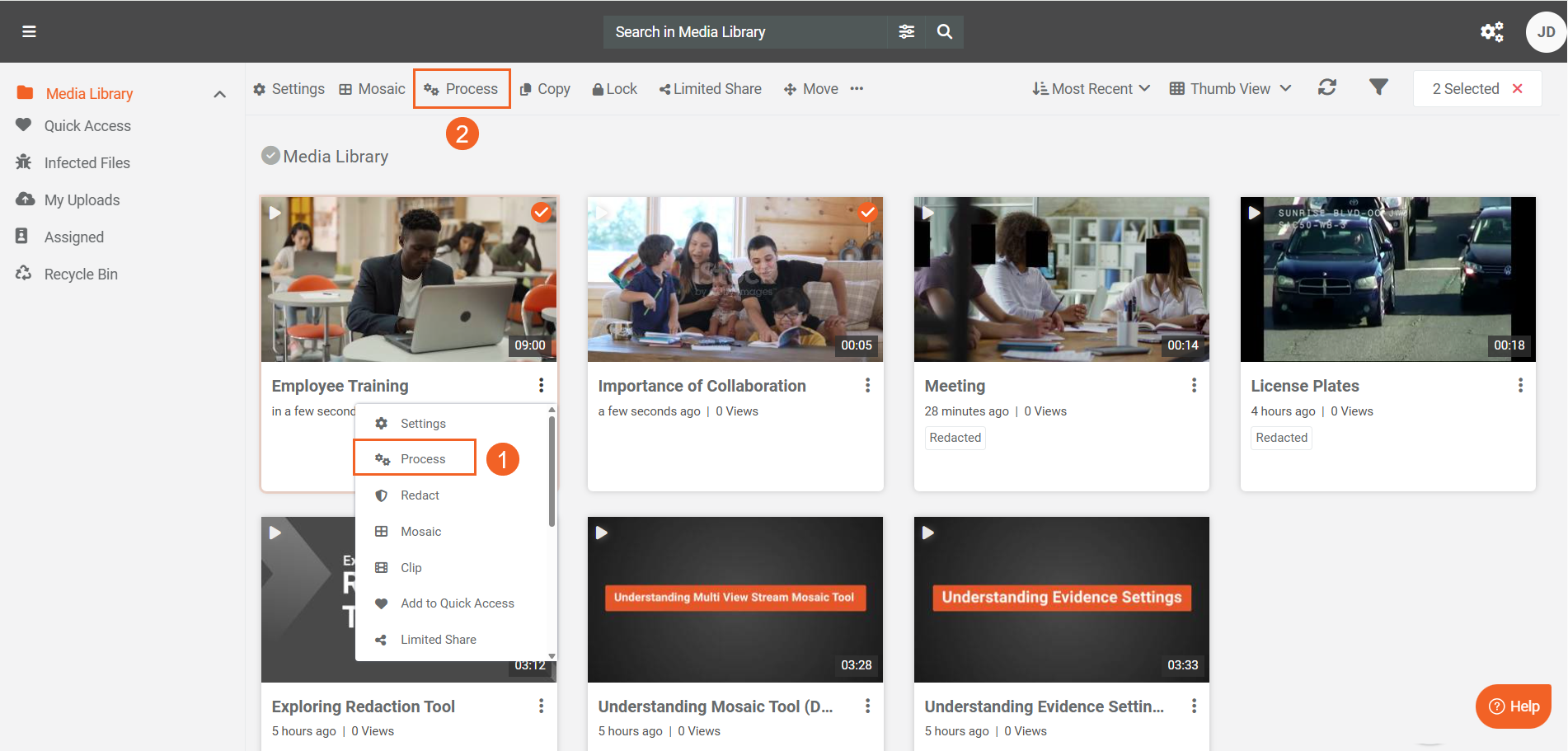
For existing content already in your Portal, use the Process Modal to selectively perform detection and redaction individually or in bulk.
- For a single item, open the item menu (⋯) and select Process.
- For multiple items, select the items and choose Process from the header menu.
-
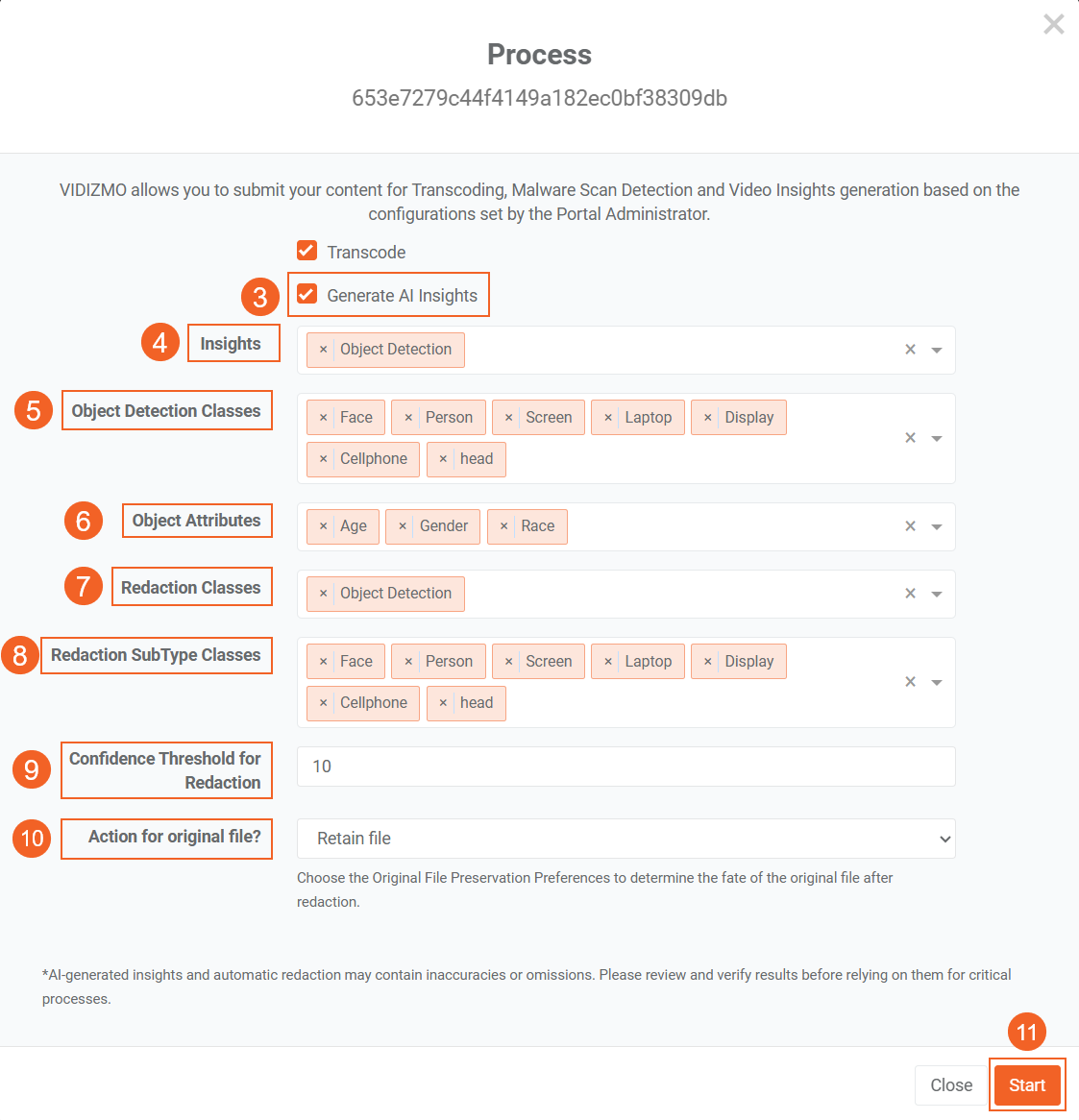
In the Process modal, select Generate AI Insights.
-
In the Insights field, select Object Detection.
-
In Object Detection Classes, select the object types you want to detect (for example, Face, Person, Screen, Laptop, Display, Cellphone, Head).
-
If you selected Face, the Object Attributes field appears. Select the attributes you want to detect: Age, Gender, Race.
-
In Redaction Classes, select the insight types to redact: Object Detection, Optical Character Recognition, or both.
-
In Redaction SubType Classes, select the specific object classes you want to redact.
-
Set the Confidence Threshold for Redaction. Objects detected with confidence scores at or above this value will be redacted.
-
Select Action for Original File to determine how the original file is handled.
-
Click Start to begin processing.
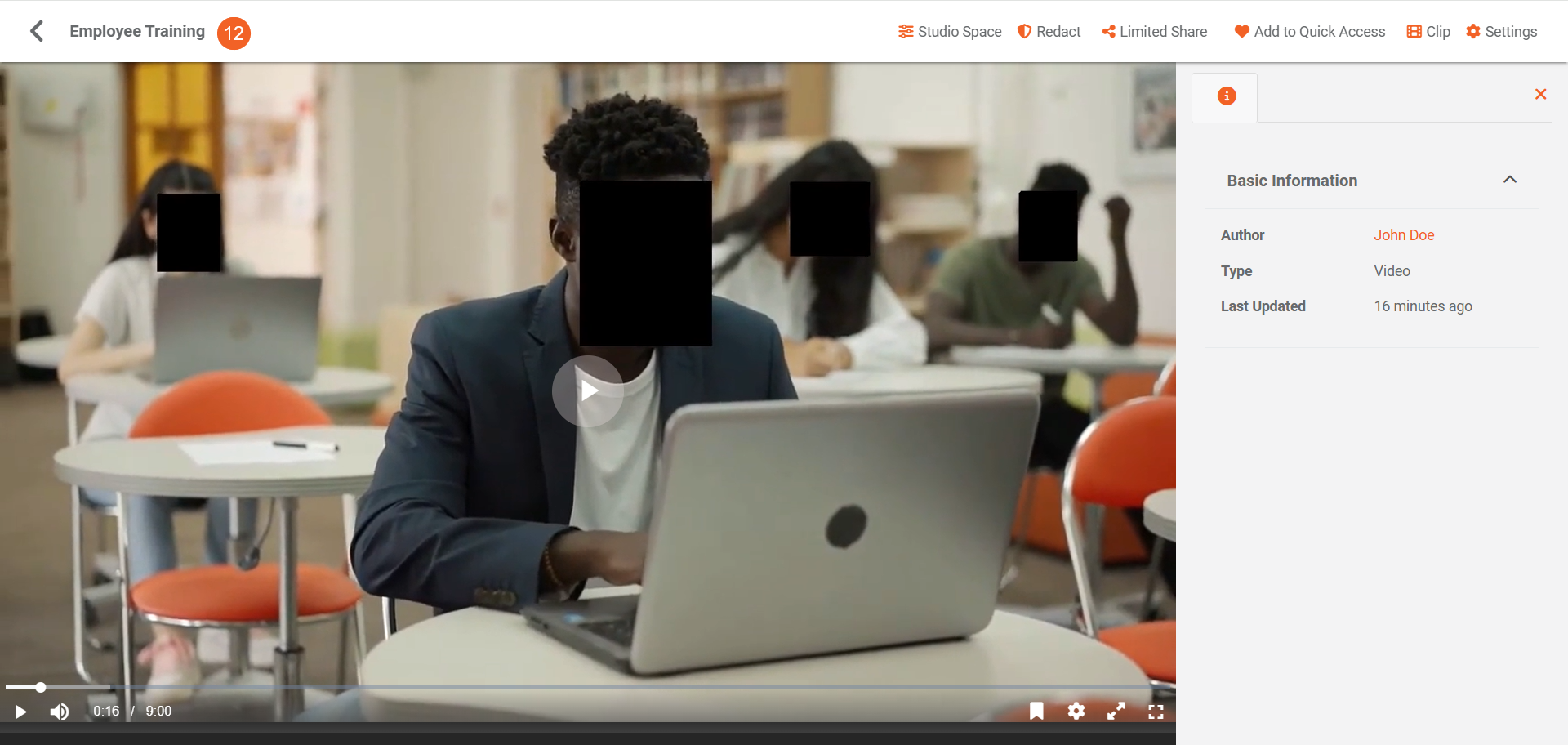
- Once processing is complete, open the content to review the detected and redacted objects directly on the playback page.
Document Redaction
The Vision Indexer can detect and redact objects in documents (such as faces in scanned images) and redact text patterns using Custom Patterns.
Automatic Document Redaction
Configure the Vision Indexer by selecting Document in Media/Evidence Types and the custom patterns you want to use.
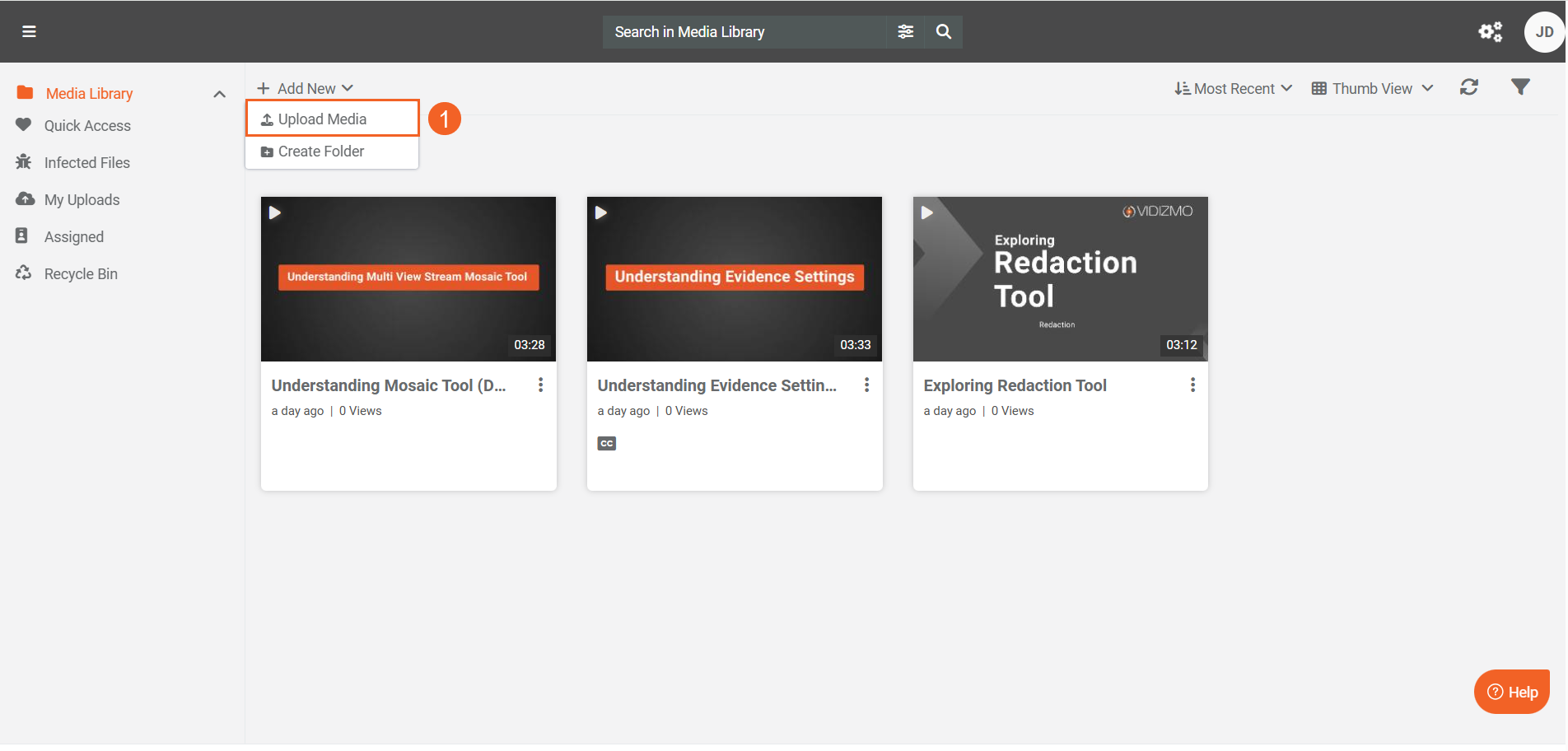
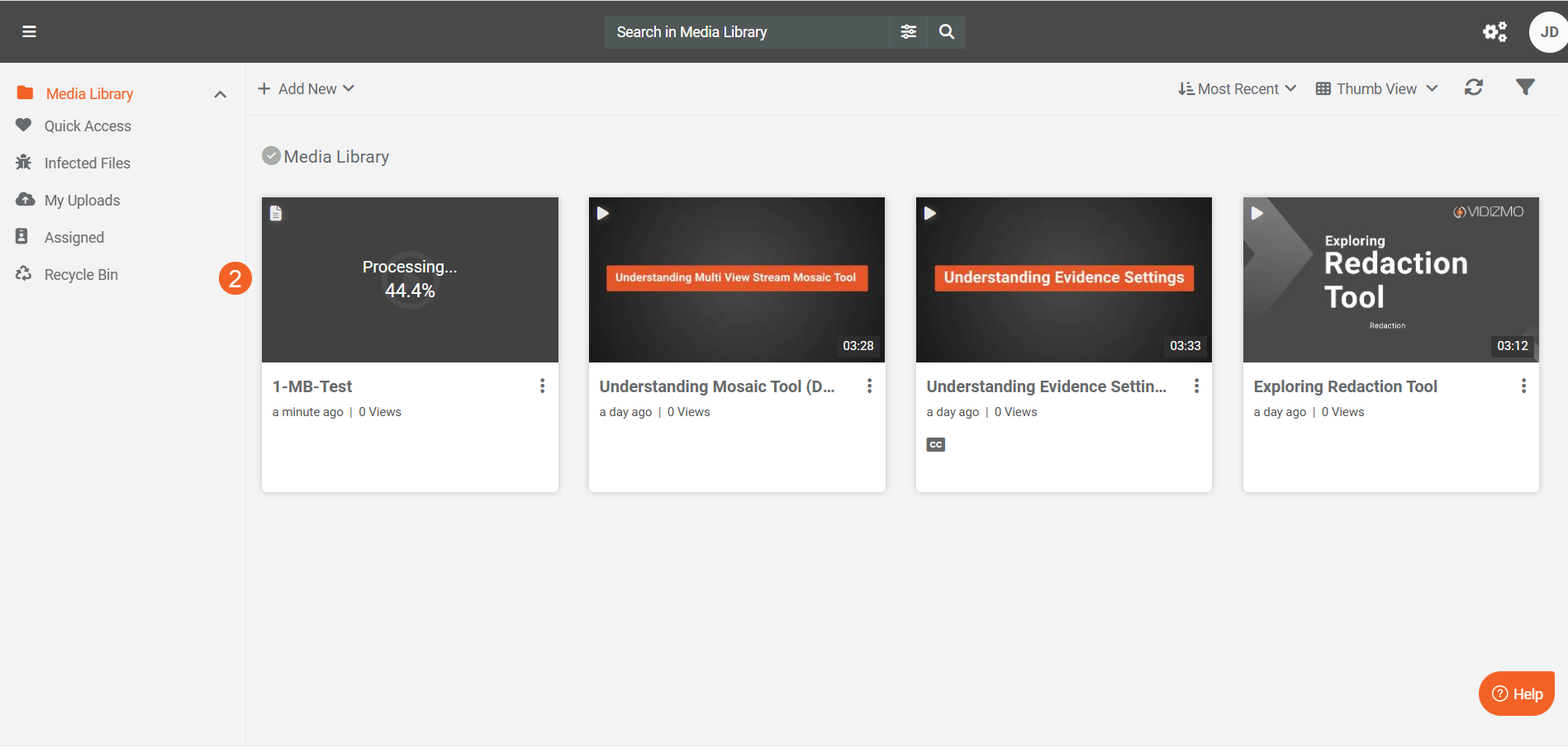
- Upload the document using Upload Media via the + Add New button.
- Wait for processing to complete.
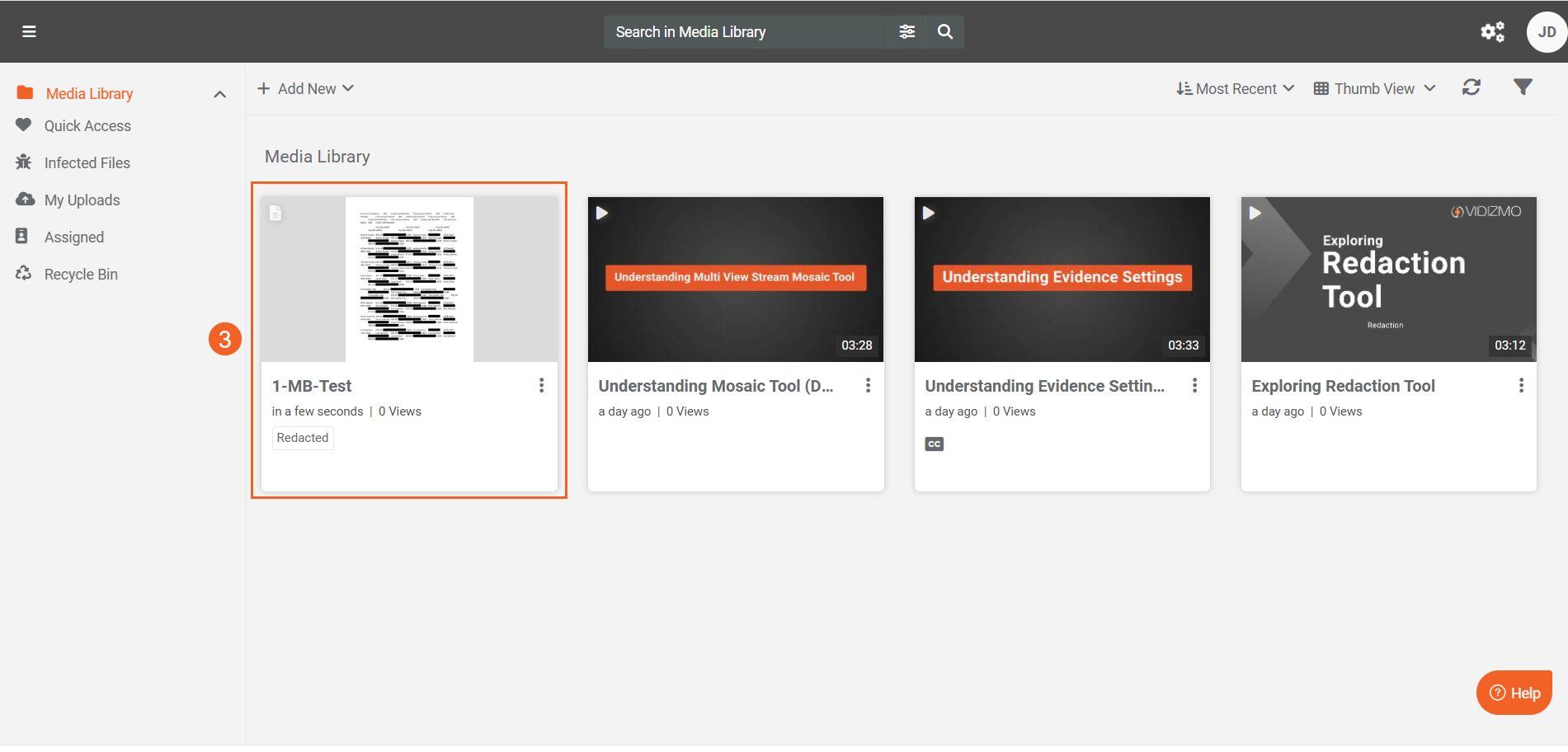
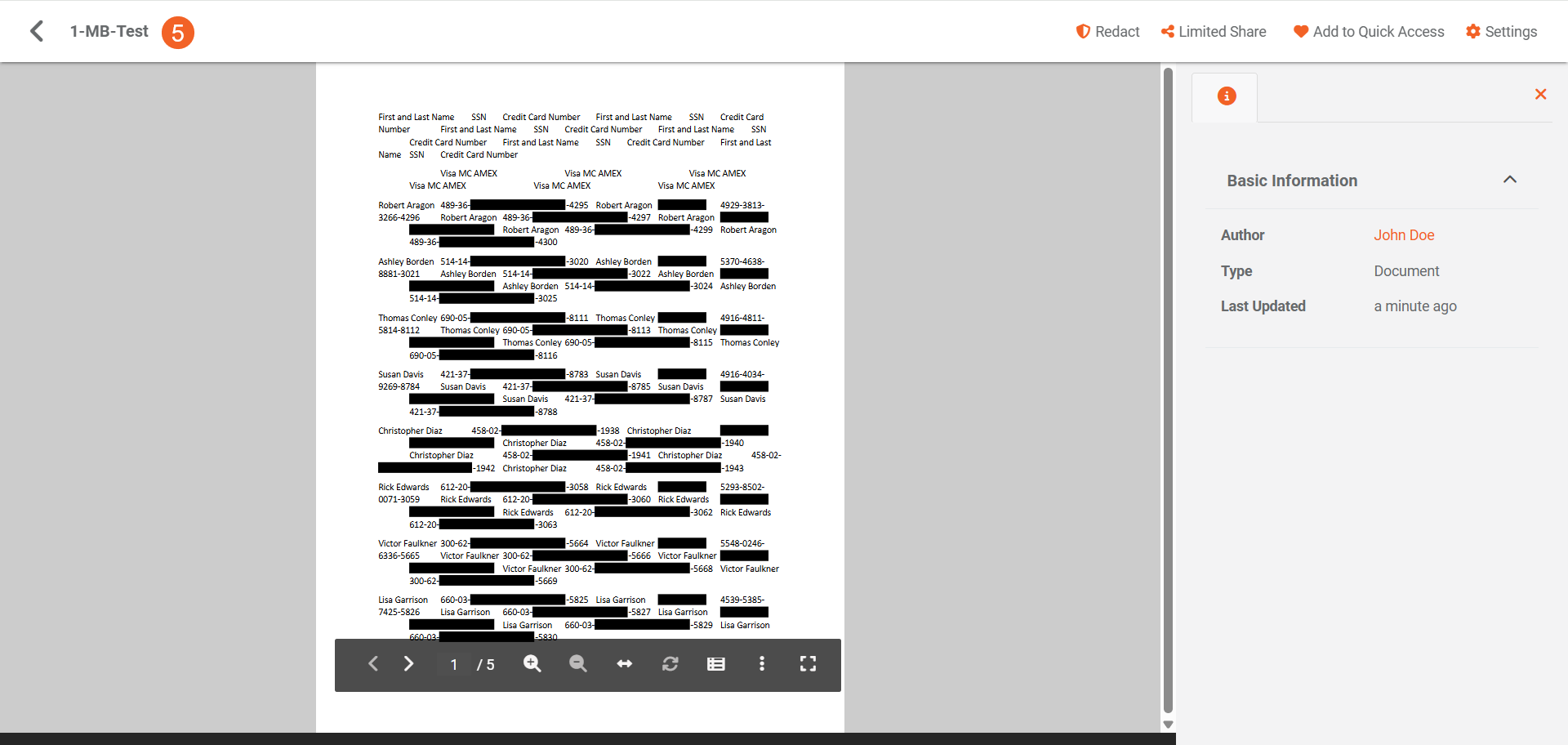
- Once processing completes, click your content to open its playback page.
- The document shows redactions applied according to your selected custom patterns.
For a guide on creating custom patterns, see How to Create Custom Patterns.
For on-demand document processing, use the Process Modal as described above, or see How to Perform Document Redaction in VIDIZMO.
Read Next
- How to Perform Object Detection using VIDIZMO Vision Indexer
- Configuring VIDIZMO Vision Indexer for Object Detection
- How to Perform Document Redaction in VIDIZMO